
A used laptop can be a sensible way to get the machine you need without paying for a brand-new one. The important part is looking beyond the badge on the lid. Two laptops with the same model name can have different screens, memory, batteries, and histories.
Start with the work you want to do, then inspect the exact unit in front of you. This guide gives you a clear order for both, so you can make a decision on configuration, condition, and checking terms rather than a headline price alone.
Last updated: 23 October 2026. This sample guide focuses on practical checks, rather than live retailer prices.
Start with the work, not the spec sheet
Write down the applications you use on a normal day. A browser, documents, and video calls have different demands from large design files, virtual machines, or video editing. Be specific about what you need to run at the same time.
Portability matters too. A laptop that stays on a desk has different priorities from one you carry to university every day. Think about screen size, keyboard comfort, charger weight, and the ports you actually use.
Choose a sensible baseline
- Storage: an SSD is a practical baseline for responsive everyday use. Check its capacity and condition, not just its presence.
- Memory: 8GB can suit light work; 16GB gives more breathing room for multitasking. Check whether memory is replaceable before planning an upgrade.
- Processor: compare the full model number. A Core i5 label by itself does not tell you the generation, power class, or capabilities.
- Screen: inspect the resolution, brightness, viewing angles, and condition of the actual panel.
Compare the configurations
Use this as a starting framework, not a promise that a particular specification will suit every application. Your exact software, files, and working habits still matter.
A practical configuration shortlist, by workload
Scroll sideways to see all columns
| Configuration | A starting point for | Check before buying |
|---|---|---|
| 8GB RAM + 256GB SSD | Documents, browsing, light study, and everyday calls | Available storage, memory upgrade options, and battery condition |
| 16GB RAM + 512GB SSD | More browser tabs, coding tools, and everyday multitasking | Exact processor model, cooling condition, and battery report |
| 16GB+ RAM + larger SSD | Larger project files and more demanding applications | Software requirements, supported upgrades, and sustained performance |
| A lightweight business model | Daily commuting and work away from a desk | Actual weight, keyboard comfort, ports, and charger size |
Inspect the laptop in person
Allow enough time to use the laptop rather than simply watch it turn on. Bring a USB drive, headphones, and a short list of things to test. If a feature matters to your work, try it before you leave.
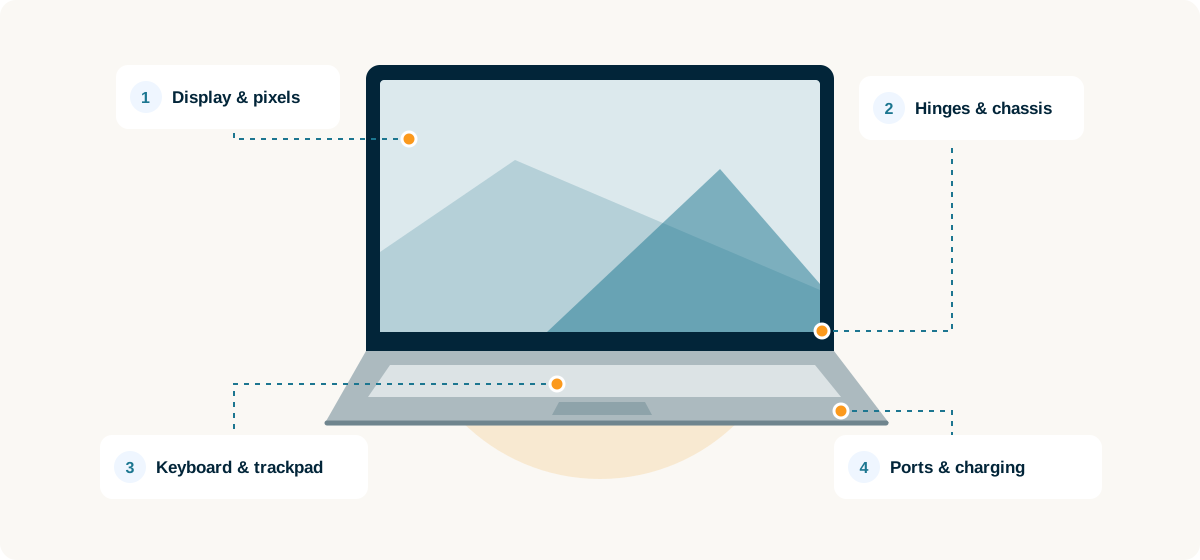
Check the screen and chassis
Look at the screen on light and dark backgrounds, change the brightness, and inspect it from different angles. Test the hinges gently and look for uneven gaps, damaged screws, or cracks around the ports.
Type a short paragraph, try the trackpad buttons, connect to Wi-Fi, and make a quick test recording with the webcam and microphone. Check the ports you need, including video output and charging.
Read the battery report
On Windows, the built-in battery report gives useful context. Open Command Prompt and run:
powercfg /batteryreportOpen the generated report and compare Design Capacity with Full Charge Capacity. These figures are one part of the picture. Also watch how the laptop behaves unplugged and ask whether the battery has been replaced.
The best deal is a laptop that fits your work—and still passes the checks in front of you.
Ask the right questions
Make the conversation about the exact unit, not a general promise about the model. A clear answer now can save confusion later.
- What is its stated condition? Ask whether it is used or refurbished, and what work has been carried out.
- What is included? Confirm the charger, its rating, and any accessories listed in the offer.
- What can I check? Ask about diagnostics, firmware passwords, account locks, and testing the ports.
- What are the written terms? Confirm the checking period, covered issues, return process, and the details shown on the receipt.
The takeaway
Choose for the work you do, compare the exact configuration, and inspect the actual laptop. A useful specification is only useful when the machine is in a condition you are comfortable buying.
Keep your shortlist small, take your time with the checks, and compare the complete offer. You can browse the Laptizo laptop catalogue for a starting point, then confirm the current details with the seller.